![SB Watch 2. [Predict and Peek.]](/assets/images/products/sb-watch-2.png)
Troubleshooting
Reporting an Issue
Before reaching out, please take a moment to explore our documentation – many common questions and solutions are already covered.
If you still need help, visit our dedicated Reporting an Issue page for full details.
When contacting us, including the following details will help us assist you faster:
- What device are you using? (iOS or Android)
- What is the firmware version on your device?
- When and where did you purchase it? Please include your order ID if available.
- What exactly is the issue? Describe what happened and what you expected.
- Can you record a short video? Seeing the issue helps us understand and solve it more quickly.
You can reach us via our Contact Us page. We’re here to help!
Charger Not Charging the SB Watch 2
If the SB Watch 2 does not start charging even when correctly placed on the charger, try the following steps:
- Check for Protective Foil: Ensure that the protective foil on the back of the watch has been removed. The foil can prevent proper contact with the charger.
- Adjust the Watch Position: Slightly shift the watch to one side while keeping it on the charger. Sometimes, a small adjustment helps establish a stable charging connection.
- Rotate the Watch: Ensure the band is not blocking the charging process by rotating the watch slightly.
- Fine-Tune Slowly: Move the watch horizontally, no more than 1 mm at a time, while keeping it in contact with the charger. Watch for the charging icon to appear.
- Be Patient: Move the watch slowly and deliberately to pinpoint the optimal position. Quick movements can make it easy to miss the right spot. Once the charging icon lights up, leave the watch in that position to ensure a stable connection.
Once the charging icon lights up, leave the watch in that position to ensure a stable connection.
Can’t Connect to the Watch
If you are experiencing difficulty connecting your watch to your phone, it may be due to a setting issue or a low battery. Even if the watch’s hands are still moving, the watch may not have enough power to maintain a Bluetooth connection. To troubleshoot this issue, you can check the following:
- Make sure Bluetooth is enabled on your phone.
- Check that the watch is turned on. If you have the original firmware (you have had your watch for years and have not updated the firmware yet), you may need to press a button to turn it on.
- Ensure that no other devices, such as a remote or another phone, are currently connected to the watch.
- Keep in mind that phones have a limit on the number of devices they can connect to at one time. If you have many other devices (such as a fitness band or earphones) connected to your phone, try disconnecting some of them to see if this resolves the issue. Most modern phones can connect to 10-16 devices at once.
- Try restarting your phone, or moving at least 20 meters away from other devices to see if this helps to disconnect any other devices that may be connected to your watch.
- If your phone cannot detect the Bluetooth signal from your SB Watch 2, press and hold the crown for about 30 seconds to restart the watch. After the watch restarts, try connecting it to your phone again.
MrCard Won’t Connect to SB Watch 2
If you’re trying to connect MrCard to your SB Watch 2 and it’s not working:
-
Disconnect from Phone First
- If SB Watch 2 is connected to TimeSmith or another app, close the app completely
- MrCard cannot connect if the watch is already connected to your phone
-
Check MrCard Battery
- Make sure MrCard is charged and powered on (press P button)
- Low battery on MrCard will prevent connection
-
Use Close Proximity
- Place MrCard and SB Watch 2 very close together (within 5cm)
- Press the O button on MrCard to search for devices
- Keep devices close until connection is established
-
Reset Both Devices
- Turn off MrCard (hold P button)
- Restart SB Watch 2 (hold crown for 30 seconds)
- Wait 5 seconds, then try connecting again
See the full guide: MrCard + SB Watch
Watch Connects Then Immediately Disconnects
This usually indicates competing connections:
- MrCard Pairing Conflict - If you’ve paired MrCard with your phone, it may interfere with watch connection. “Forget” MrCard from your phone’s Bluetooth settings.
- Multiple Devices - Ensure no other remotes (Atom 2, ThoughtCast Versa, etc.) are trying to connect
- App Running in Background - Force close TimeSmith or other watch apps before using MrCard
- Low Battery - Charge the watch if battery is low
For Android
- Make sure that GPS is enabled on your device. GPS may be required for Bluetooth communication to work properly.
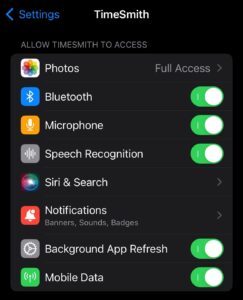
- Allow the app to access Bluetooth and/or location services.
- Note that there may be some bugs in the Bluetooth implementation on Android devices. If you are experiencing connection issues, try restarting your phone.
- You do not need to connect to the watch from your Bluetooth settings. The app will handle the connection process.
For iOS
- Allow the app to access Bluetooth and/or location services.
- You do not need to connect to the watch from your Bluetooth settings. The app will handle the connection process.
The Hands are Off, Watch Shows Wrong Time
If you are setting the time on your watch to 12:00, but the hands are not moving to the correct position, there are a few things you can try:
- Calibrate the hands by following the calibration guide.
- Check the battery level. If you have SB Watch 1 and not replaced the battery recently or if you have been using the watch for more than six months with a new battery, consider replacing the battery.
- If you have already calibrated the watch but the hands become decalibrated after setting the time, try adjusting the “direction” settings in the app at the watch settings. Testing with the direction set to “forward” may help.
- Make sure that the hands are not blocked by the glass or the watch face. Ensuring that the watch is properly assembled may resolve this issue.
Timekeeping Issues
If the hands of your watch are not keeping time correctly, especially after setting different times frequently or after a while, follow these steps:
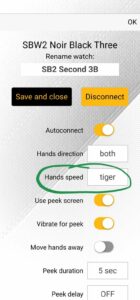
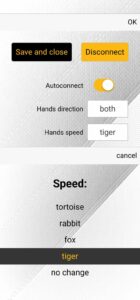
- Hands Speed Setting: Open the app and go to the Details… tab.
- Locate the Hands Speed option and select a speed (e.g., Tortoise).
- Run the Test Hands function to check if the hands reset to 12:00 accurately.
- Adjust if Necessary: If the hands do not align correctly at 12:00, try a different Hands Speed setting.
- Test each speed until the watch consistently resets to 12:00.
Note: Needing calibration after a week may be normal. However, if the hands frequently go off after a few time changes, these adjustments should help resolve the issue.