

![Atom 2. [Smart Remote.]](/assets/images/products/atom-2.png)
Atom 2 Smart Remote
Welcome to Atom 2 — the smartest remote on the market. This tiny device will help you control apps, devices, and create amazing moments of magic.
How Atom 2 Works
Atom 2 is a versatile Bluetooth remote that works in three ways:
With Apps
Control magic apps on your phone:
iPhone/Android Phone → PeekSmith App → Atom 2
Atom works with PeekSmith app and other magic apps. Send commands, trigger effects, and control what happens on screen — all from your pocket.
With Other Devices
Connect directly to Electricks devices without needing a phone:
Atom 2 → PeekSmith 3
Control what appears on your PeekSmith 3 device.
Atom 2 → SB Watch
Set and reveal times on your SB Watch.
Atom 2 → Other Devices
Connect to Bond, Teleport, Quantum, and more.
For details, see Compatibility.
Standalone Mode (Mini-Apps)
Run mini-apps directly on Atom without phone or internet:
Atom 2 supports MagiScript — you can create mini-apps that run on the device independently. Built-in mini-apps include card forces, number forces, time controls, and more.
See Built-in Mini-Apps for the full list.
As Bluetooth Keyboard
Atom can function as a Bluetooth keyboard, letting you type into any app:
- Enter numbers with Numeric Keyboard
- Type text with various keyboard layouts
- Control media playback
- Act as a mouse cursor
Perfect for entering information silently and hands-free.
Quick Start
Get up and running in 5 minutes.
1. Charge Your Device
Before first use: Charge Atom for at least 1 hour.
Connect the included USB-C cable to Atom and plug it into any USB port.
Charging indicators:
- Yellow LED — Low battery, charging
- Red LED — Charging in progress
- Green LED — Fully charged
Charging time: ~2 hours for full charge
Battery life: ~3 hours of continuous use
Pro tip: Charge before every performance to ensure reliable operation.
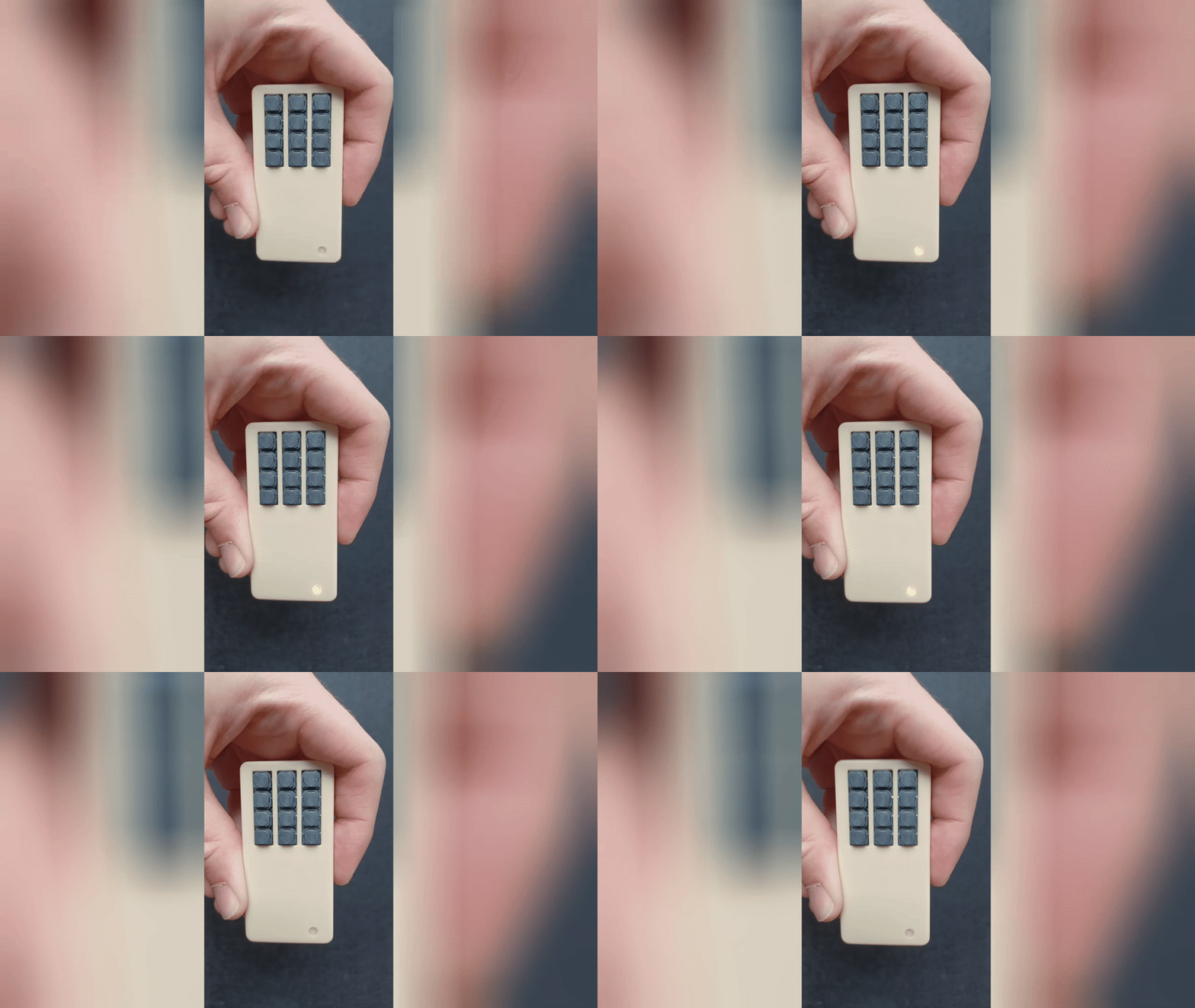
2. Turn It On
Important: Disconnect the charger first — Atom cannot turn on while charging.
Press and hold the power button (on the back) until you feel a vibration. The LED will turn cyan for 5 seconds — this is Launch Mode.
Low battery warning: If the LED blinks yellow 3 times when turning on, the battery is too low. Charge for at least 1 hour before trying again.
3. Understanding Launch Mode
When Atom starts, the cyan LED indicates Launch Mode — you have 5 seconds to launch a mini-app by pressing buttons #1–#11.
Launch Mode options:
- Press button #1–#11 to launch that mini-app
- Wait 5 seconds to use Atom as standalone remote (no mini-app)
- Double-click power button anytime to re-enter Launch Mode
Set auto-launch: Press and hold power button, then press the mini-app button you want to auto-start. Be careful not to hold too long or Atom will turn off.
4. Download the PeekSmith App
Download the PeekSmith app to configure Atom and update firmware.
Sign in: Use Apple ID (iOS) or Google account (Android) — required for most features.
5. Update Firmware
Connect to Atom in the PeekSmith app and update to the latest firmware for new features and improvements.
Why update? New mini-apps, better battery life, and bug fixes are added regularly.
See Firmware Update Guide for instructions.
6. Try Your First Mini-App
Launch a mini-app to test Atom’s capabilities:
- Turn on Atom (cyan LED appears)
- During the 5-second Launch Mode, press button #1 (launches first mini-app)
- Follow the mini-app’s LED indicators and vibration feedback
- Double-click power button to exit and return to Launch Mode
Explore Built-in Mini-Apps to see what’s available.
What’s in the Box
✅ Atom 2 Smart Remote
✅ USB-C charging cable
Before You Perform
Make sure your Atom is:
- Fully charged — 3 hours battery life per charge
- Updated — Latest firmware installed
- Tested — Practice launching mini-apps beforehand
- Hidden — Fits in pocket, can be used without looking
Pro tip: You can turn Atom on and off during performances to save battery between routines.
Turning Off Your Device
Press and hold the power button. After a few seconds, the LED turns red, Atom vibrates, and turns off.
Atom 2 Features
Hardware:
- 12 silent buttons (usable through your pocket)
- Multi-purpose power button
- RGB LED for status indication
- Motion intelligence with built-in accelerometer
- Fine-tuned Bluetooth range for reliable performance
Connectivity:
- Works with PeekSmith 3
- Works with Bond
- Works with SB Watch
- Works with Quantum
- Works with Teleport
- Compatible with many magic apps
Capabilities:
- MagiScript mini-apps
- Bluetooth keyboard modes
- Direct device control
- App integration
Battery Care
Your Atom has a rechargeable battery that lasts for years when cared for properly.
Do this:
- ✅ Charge fully before performances
- ✅ Charge every 2-3 months, even if not using
- ✅ Use any standard USB charger (avoid “smart” fast chargers)
- ✅ Turn off between routines to save battery
Avoid this:
- ❌ Letting battery drain completely (damages LiPo batteries)
- ❌ Trying to turn on while charging (it won’t work)
- ❌ Using extremely high-power chargers (some won’t detect Atom)
Battery indicators:
- Yellow blinks = Low battery, charge soon
- Cyan LED = Normal operation
- Red/Yellow/Green while charging = Status indicator
Join the Community
Connect with other Atom users, share routines, and get tips.
📘 Atom Facebook Group
Active community for feature discussions and sharing experiences.
📘 MagiScript Facebook Group
For developers creating mini-apps and custom functionality.
Need help?
- App questions: Contact Benke Smith
- Device/order support: Electricks Support
Common Questions
Atom won’t turn on
Check these things:
- Is the battery charged? (Charge for 1 hour minimum)
- Is it disconnected from the charger? (Cannot turn on while charging)
- Does the LED blink yellow 3 times? (Battery too low, charge longer)
- Are you holding the power button long enough? (Hold until vibration)
For more help, see Troubleshooting.
How do I use Atom as a keyboard?
Launch a keyboard mini-app from Launch Mode. There are several keyboard options:
- Numeric Keyboard — For entering numbers
- Bluetooth Keyboard — Full keyboard functionality
- Custom Keyboard — Create your own layout
iOS tip: When Atom is paired as a keyboard, the on-screen keyboard hides. Tap Atom’s power button to toggle the virtual keyboard back on.
Can I create my own mini-apps?
Yes! Atom supports MagiScript — a simple programming language for creating custom mini-apps.
Even if you’ve never coded before, you can start with preloaded apps or adapt examples. The MagiScript documentation has tutorials and examples to get you started.
What’s the battery life?
Current firmware provides approximately 3 hours of continuous use. Battery life improvements are planned for future firmware updates.
Tip: Turn Atom off between routines to extend battery life during performances.
Keep Your Device Updated
New features and improvements are added regularly.
Update firmware: Follow the Firmware Update Guide
Update apps: Keep PeekSmith app updated from App Store/Play Store
Join community: Stay updated in the Facebook Groups
Next Steps
Learn features: Explore Built-in Mini-Apps
Check compatibility: See which apps and devices work with Atom
Learn MagiScript: Create custom mini-apps with MagiScript
Get support: Visit our Troubleshooting Guide
Start by fully charging your Atom, updating the firmware, and exploring the built-in mini-apps!
—-
Atom 1 (Deprecated)
Atom 1 is no longer supported. We offered a free upgrade program to Atom 2.
If you have Atom 1 battery issues: Unplug it and wait until the battery fully drains (3 days). Then try charging again. If it doesn’t start, remove from charger immediately and try later. Once it turns on, charge fully.