

![Quantum Calculator. [Force Numbers.]](/assets/images/products/quantum.png)
Quantum Calculator
Welcome to Quantum — a calculator that looks completely ordinary but hides extraordinary power for mentalism and magic performances.
How Quantum Works
Quantum is a Bluetooth-enabled smart calculator that works in three ways:
With Apps
Connect Quantum to your phone and apps:
iPhone/Android Phone → PeekSmith App → Quantum
The PeekSmith app lets you configure Quantum’s behavior, set force numbers, and control settings. Configure routines, update firmware, and manage mini-apps all from the app.
With Other Devices
Connect directly to Electricks devices without needing a phone:
Quantum → PeekSmith 3
Mirror Quantum’s display to your PeekSmith 3 for hands-free peeking.
Quantum → SB Watch
Send calculated results to SB Watch for time reveals.
Quantum → Bond
Use Bond to toggle force mode or control Quantum features.
Quantum → MrCard
Integrate with MrCard for multi-device routines.
For details, see Compatibility Matrix.
Standalone Mode (Mini-Apps)
Run mini-apps directly on Quantum without phone or internet:
Quantum supports MagiScript — you can create mini-apps that run independently on the device.
Built-in mini-apps:
- Q-Force: Force any number effortlessly
- Q-Type: Bluetooth keyboard functionality
- Q-Sequence: Assign actions to entered numbers
- Q-Mirror: Mirror two Quantum screens
- Q-Fate: The illusion of choice
See Built-in Mini-Apps for details.
As Bluetooth Keyboard
Quantum can function as a Bluetooth keyboard, letting you type calculations into any app. Perfect for entering numbers on spectator phones, notes apps, or other magic apps.
Quick Start
Get your Quantum ready in just a few minutes.
1. Charge Your Device
Before first use: Charge Quantum for at least 1 hour using the included Qi wireless charger.
How to charge:
- Place Quantum on the wireless charging pad
- Align the charging area (near the hologram sticker on the back, bottom area)
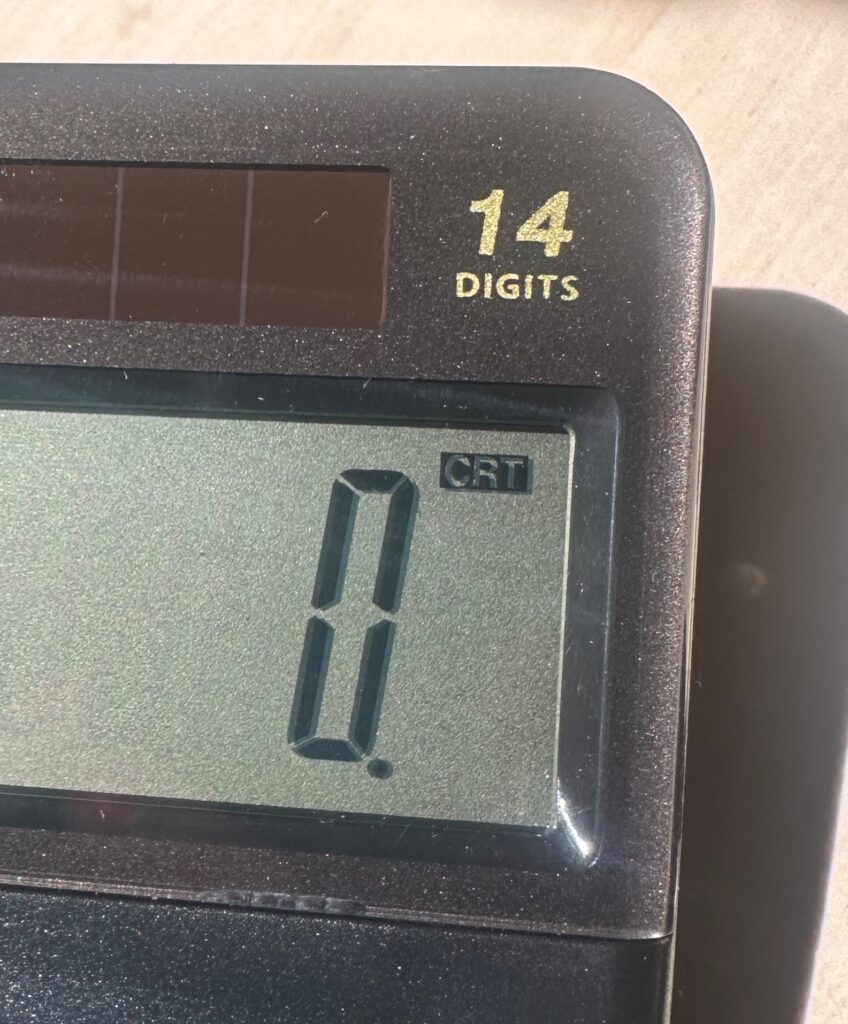
- Look for the “CRT” indicator in the top-right corner of the screen
- When you see “CRT”, the device is charging properly
Charging time: ~1 hour for full charge
Battery life: ~8 hours of continuous use
Pro tip: Always fully charge before performances to ensure reliable operation.
2. Turn It On
Press the ON/AC button to power on Quantum.
Power states:
- Idle mode: Press and hold ON/AC for a few seconds (dims screen, stays connectable)
- Auto idle: After 6 minutes of inactivity
- Full power off: Press and hold ON/AC, then press = button
- Auto shutdown: After 1 hour of inactivity
3. Update Firmware
Before using Quantum, update to the latest firmware for new features and bug fixes.
Follow our Firmware Update Guide for step-by-step instructions.
⚠️ IMPORTANT: If you’re on firmware older than v1.0.7, update immediately. Earlier versions had a critical bug that could cause the device to become unresponsive.
Why update? New features, improved performance, and bug fixes are added regularly.
4. Download the PeekSmith App
Quantum works with the PeekSmith app for advanced features and control.
Download: PeekSmith App
Sign in: Use Apple ID (iOS) or Google account (Android) — required for most features.
5. Connect to the App
- Open PeekSmith app
- Go to Settings → Devices
- Tap “List devices” and select your Quantum
- Follow pairing instructions if prompted
Important: Don’t pair from phone Bluetooth settings — let the app handle it.
6. Try Q-Force (Number Forcing)
Test Quantum’s signature feature:
- Set a force number - Enter
1234on the calculator - Store it - Long-press the
)button for ~1 second - Try a calculation - Enter
50 + 50 - Press equals - The display shows
1234instead of100!
This is Q-Force in action. See the Q-Force tutorial for more advanced techniques.
What’s in the Box
✅ Quantum Calculator
✅ Qi wireless charger
Before You Perform
Make sure your Quantum is:
- Fully charged — 8 hours battery life per charge
- Updated — Latest firmware installed (v1.0.7+)
- Connected — Paired with your phone/app if needed
- Tested — Practice your routines beforehand
Pro tip: Charge after every performance to ensure it’s always ready.
Understanding Quantum
It Looks Like a Normal Calculator
The visible battery slot and solar panel are cosmetic only — they don’t actually power the device. Quantum is powered by a hidden LiPo battery charged wirelessly.
About the Slide Switches:
Quantum has three slide switches on the front that look functional, but they are currently cosmetic only and do not affect device operation. They’re part of the authentic calculator appearance.
Future firmware updates may add functionality to these switches, but for now, they serve to maintain the realistic calculator look.
MagiScript Support
Quantum supports MagiScript — you can create mini-apps that run on the device without internet or phone connection.
Explore the MagiScript documentation to create your own mini-apps or use community-created ones.
Battery Care
Your Quantum has a rechargeable battery that lasts for years when cared for properly.
Do this:
- ✅ Charge after every performance
- ✅ Charge at least once a month even when not in use
- ✅ Use any standard Qi wireless charger
- ✅ Look for “CRT” indicator to confirm charging
Avoid this:
- ❌ Don’t let it fully discharge (damages LiPo batteries)
- ❌ Don’t use damaged or low-quality chargers
Charging behavior:
- Won’t charge below ~10% battery (leave on charger 10-15 minutes to reach threshold)
- Stops charging at ~90-95% (intentional, preserves battery health)
See Troubleshooting for more battery tips.
Join the Community
Connect with other Quantum users, share routines, and get tips.
📘 Quantum Facebook Group
Active community for feature discussions, sharing experiences, and getting support.
📘 MagiScript Facebook Group
For developers creating mini-apps and custom functionality.
Need help?
- App questions: Contact Benke Smith
- Device/order support: Electricks Support
Common Questions
The app doesn’t see my Quantum
Check these things:
- Is Quantum turned on? (Press ON/AC button)
- Is Bluetooth enabled on your phone?
- Is Quantum already connected to another device?
- Is the battery charged?
- On Android: Is GPS/Location enabled? (Required for Bluetooth)
For more help, see Troubleshooting.
How do I know when it’s charging?
When properly aligned on the charger, you’ll see a ”CRT” indicator in the top-right corner of the Quantum screen.
If you don’t see it, try moving Quantum slightly on the charger to find the optimal position.
Can I replace the battery?
No. The battery is not user-replaceable. With proper care (regular charging, not letting it fully discharge), it will last for years.
What’s the difference between Idle and Off?
Idle mode: Dims screen, reduces power, stays connectable to apps, mini-apps keep running
Full power off: Completely shuts down, disconnects from everything
Most of the time, Idle mode is sufficient and more convenient.
How do I use Quantum as a keyboard?
Launch the Q-Type mini-app. Quantum will then send keypresses to any connected device.
You’ll need to pair Quantum with your phone/computer (accept the pairing dialog when it appears).
See Bluetooth Keyboard for details.
Can I force any number?
Yes! Use Q-Force to force numbers in two ways:
- Permanent force: Set in PeekSmith app settings
- Temporary force: Enter number and long-press
)button
You can also set range conditions (min/max) so the force only applies within specific result ranges.
What is “ANS” on the screen?
“ANS” stands for “Answer” — it’s the last calculated result stored in memory. This is standard calculator behavior.
Press ON/AC to clear it and start fresh.
Keep Your Device Updated
New features and improvements are added regularly.
Update firmware: Follow the Firmware Update Guide
Update apps: Keep PeekSmith app updated from App Store/Play Store
Join community: Stay updated in the Facebook Group
Next Steps
Learn features: Explore our Quantum documentation
Try Q-Force: Master number forcing with the Q-Force tutorial
Learn MagiScript: Create custom mini-apps with MagiScript
Check compatibility: See which devices work together
Get support: Visit our Troubleshooting Guide
Start by fully charging your Quantum, updating the firmware, and exploring Q-Force!