

![Quantum Calculator. [Force Numbers.]](/assets/images/products/quantum.png)
Bluetooth Keyboard
Introduction
Quantum can act as a Bluetooth keyboard. This allows you to type information into any app that supports Bluetooth keyboards – on your phone, tablet, or computer.
You can use this feature to trigger effects, type hidden messages, or even control apps hands-free
⚠️ Important: This works only when Quantum is running a keyboard mini-app, like Q-Type.
Understanding Pairing vs Connecting:
- Connecting = Quantum talking to the PeekSmith app (happens through the app)
- Pairing = Your phone’s operating system recognizing Quantum as a keyboard (happens in phone settings)
When using Quantum as a keyboard, you need BOTH:
- Connected to PeekSmith app (to control settings and features)
- Paired with your phone/computer (to type into other apps)
Think of it this way: The PeekSmith app is the “remote control” for Quantum, but your phone’s OS needs to recognize it as a keyboard to actually type.
Pairing Quantum
When Quantum works as a Bluetooth keyboard, operating systems (iOS, Android, Windows, Mac) will need to pair it. It is a Bluetooth term to set up safe communication between two devices. For example, this dialog will appear on iOS. Expect to see similar dialogs on Android, Windows and Mac as well. Please note that Quantum can be paired with only one device at a time.
⚠️ Important: If you cancel the pairing , Quantum will immediately close the connection. Pairing is required.
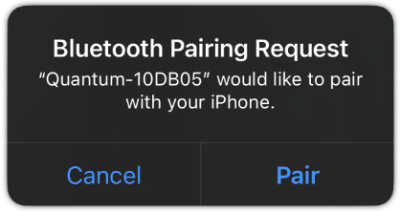
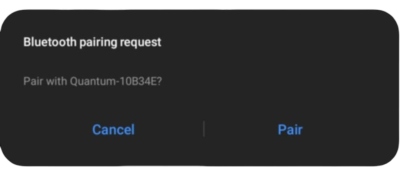
When the pairing dialog appears, you have two options:
-
Canceling the pairing will prevent Quantum from functioning as a Bluetooth keyboard.
-
Selecting “Connect” will allow it to pair and function as a keyboard.
Canceling the pairing can be useful when using the MagiScript Editor on a desktop to develop mini-apps. If you cancel, you’ll be prompted to pair again the next time you connect.
Occasionally, you may need to re-pair Quantum – this can happen after pairing with another device, a firmware update, or similar changes. If Quantum connects briefly and then disconnects, it’s likely time to re-pair. Check our Troubleshooting Guide for steps on how to remove the pairing from your phone’s Bluetooth settings.
Once paired, most operating systems will automatically reconnect to Quantum when you turn it on. However, note that this does not establish a connection to an app – you’ll still need to connect to your app manually as before.
Caveats
On iOS, when a Bluetooth keyboard is connected, the onscreen virtual keyboard is automatically disabled. However, pressing Quantum’s power button will bring the virtual keyboard back.
If you pair Quantum with an operating system (Windows, Mac, iOS, Android), the pairing with another operating system may fail. You will have to “forgot this device” and pair it again to connect.
Keyboard Mini-Apps
We created many built-in mini-apps for Quantum. You can use the Q-Type mini-app to type with Quantum.