

![Atom 2. [Smart Remote.]](/assets/images/products/atom-2.png)
Atom Time
Set the Time on an SB Watch
Launch this mini-app with button 1 (top-left).
To launch the app, turn on Atom and press button #1 (top-left) in 5 seconds (while the LED is cyan) and it will connect to your SB Watch and PeekSmith 3 automatically. PeekSmith 3 is optional.
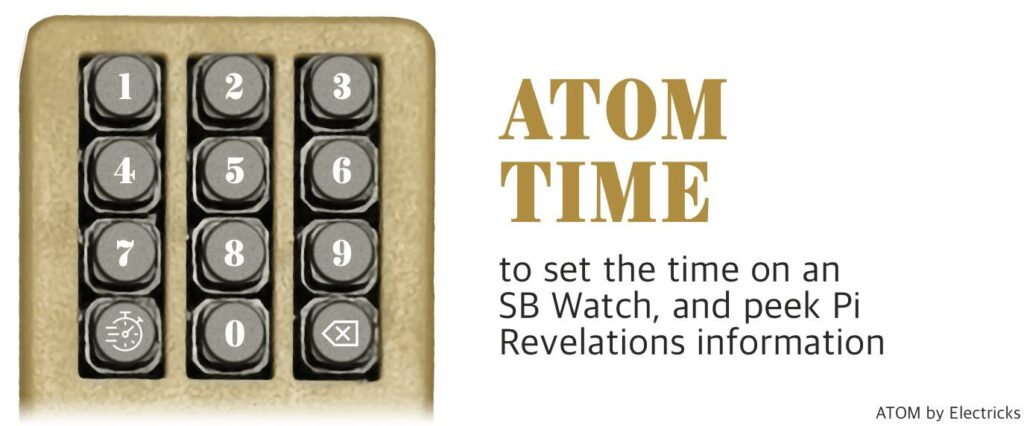
Now you can type a time. To set 5:00, press 5. By default, Atom will set the time after 3 seconds, but you can press the bottom-left “submit” button (#10) to send it immediately. To set 7:14, type 7, 1, 4.
The time you entered, and sent to the watch will be displayed on the PeekSmith 3’s screen. Until the watch’s hands move, stars will be displayed on the left and right of the time to indicate the watch is not yet ready. After a few seconds, the hands arrive, and the stars will be hidden.
If you need to correct the time you entered use the bottom right (#12) button for deleting the last digit.
You can also reset the time to the actual time. Enter 4444 or 9999, or long-press any of the buttons. Use the MagisScript Editor to configure the app.
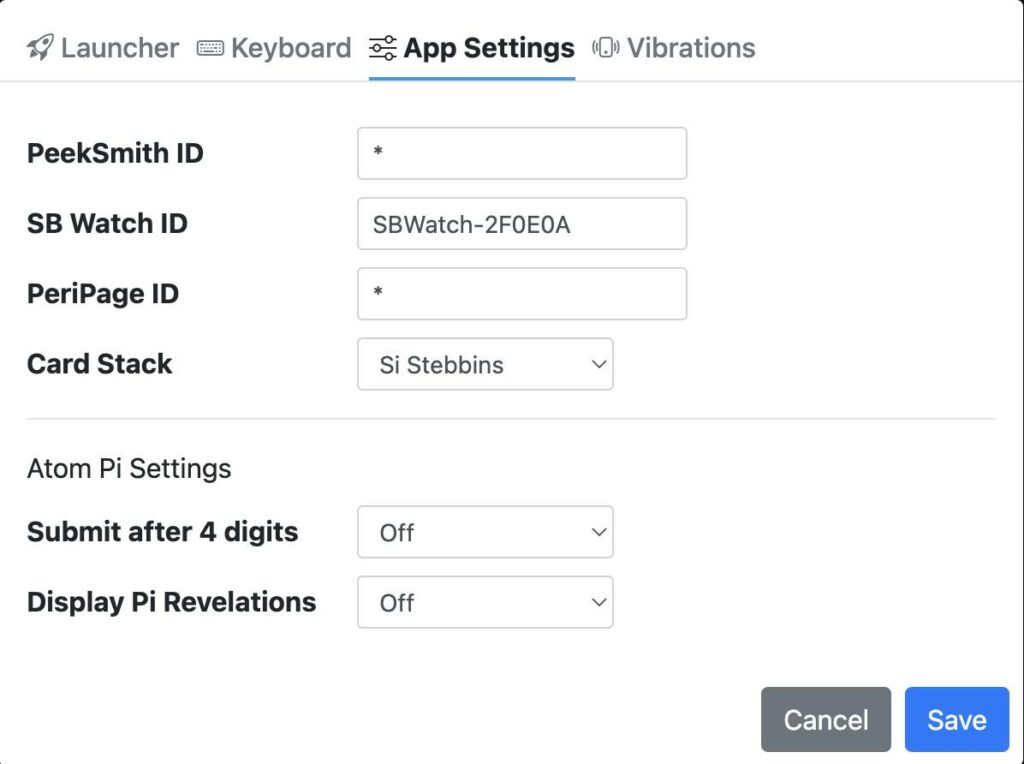
If you would like to connect to a specific PeekSmith or SB Watch , replace the * with your device’s exact name. Make sure the casing is correct, and the name includes the PeekSmith- and/or the SBWatch- prefixes.
There are two additional settings you can do. You can enable “Submit after 4 digits” , which will automatically set the time on the watch as soon as you enter 4 digits. If you made a mistake, you can use the backspace to fix the last digit(s), except if you pressed the submit button explicitly.
The other setting you can enable is “Display Pi Revelations” . If it is on, not just the time you entered and set will be shown, but a four-digit number, and the Pi Revelations information for this number, too. For example, if you enter 7:14, then 0714 and 49 15 5 will be displayed under the time.