

![Atom 2. [Smart Remote.]](/assets/images/products/atom-2.png)
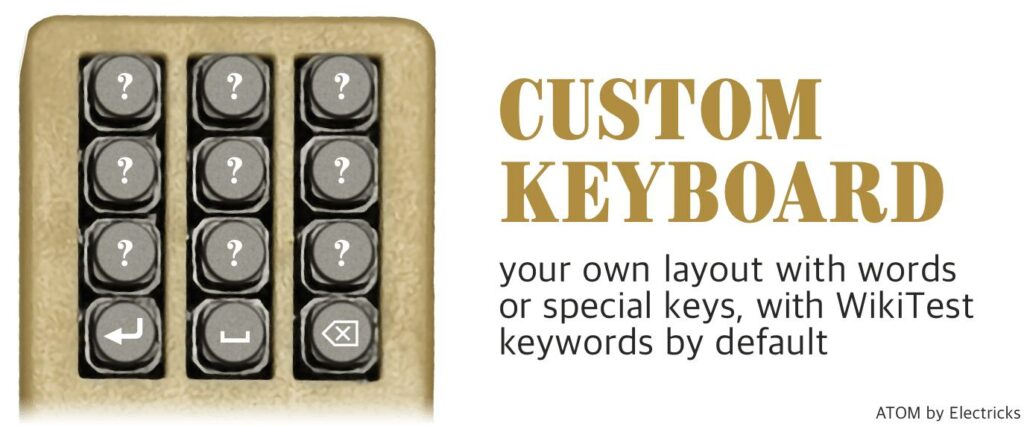
Custom Keyboard
Type WikiTest Keywords, or Setup Your Own Keyboard for Magic Performances
Launch this mini-app with button 11 (4th row-middle).
The Custom Keyboard (button #11) is our Jolly Joker layout. By default, it enters the keywords of the WikiTest (by Marc Kerstein), however you can assign any key press or words to the buttons. The backspace key is smart, if you enter a whole word with one press, backspace will delete all the letters.
For magicians, this feature is particularly powerful as it allows you to create custom routines, trigger specific phrases for mentalism effects, or control media playback during performances. All keyboard-related mini-apps require Atom to be paired with your phone as a Bluetooth Keyboard to function. Learn how to pair as a Bluetooth Keyboard.
How to Setup Your Own Keyboard
To customize your Atom device, start by opening the MagiScript Editor and connecting your Atom device. Next, click the Settings button at the top, identified by a gears icon, and select the Keyboard tab. Under Custom Keyboard Assignments , you’ll see a list of all the buttons on your Atom device, each with a corresponding text box. By entering text into these boxes, you can assign specific words or commands to each button.
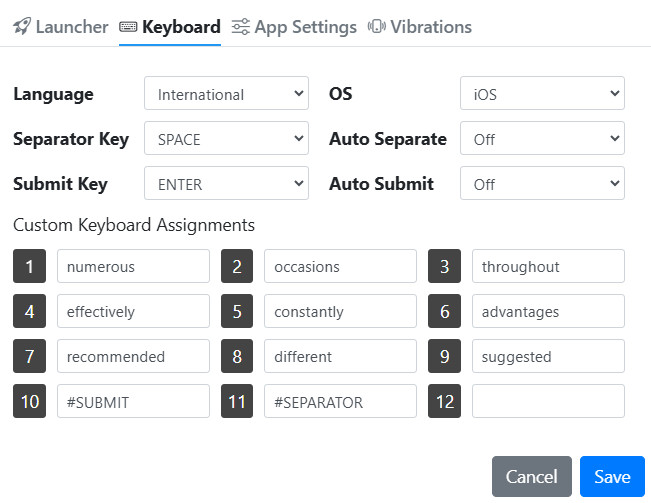
In addition to entering words, letters, numbers, or other characters, there are special values you can use to assign cursor movements, media keys, and more. These special values all start with the # character. Here’s a list for you.
Configurable Keys
#SUBMIT– by default, it is an ENTER key, but you can select other keys, see the Submit Key dropdown above.#SEPARATOR– by default, it is a SPACE key, but you can select other values, like COMMA, or COMMA + SPACE.
You can configure them above the Custom Keyboard Assignments .
Other Keys
-
#UP,#DOWN,#LEFT,#RIGHT -
#PAGE_UP,#PAGE_DOWN,#HOME,#END -
#BACKSPACE/#DEL/#DELETE,#TAB,#ENTER/#RETURN,#INS/#INSERT,#PRTSC,#CAPS_LOCK -
#F1,#F2,#F3,#F4,#F5,#F6,#F7,#F8,#F9,#F10,#F11,#F12 -
#PLAY/#PAUSE/#PLAY_PAUSE,#NEXT,#PREV/#PREVIOUS,#STOP,#MUTE,#VOL_UP/#VOLUME_UP,#VOL_DOWN/#VOLUME_DOWN
The Custom Keyboard feature lets you design your own keyboard to fit your needs, without requiring the creation of a MagiScript mini-app.
Media Control Integration
The Custom Keyboard can be configured to send media control commands, making it a versatile tool for magicians who need to control audio during performances. You can assign the following media keys to any button:
#PLAY/#PAUSE/#PLAY_PAUSE- Control music playback#NEXT- Skip to the next track#PREV/#PREVIOUS- Return to the previous track#STOP- Stop playback#MUTE- Mute audio#VOL_UP/#VOLUME_UP- Increase volume#VOL_DOWN/#VOLUME_DOWN- Decrease volume
This is particularly useful for mentalism performances where timing of audio cues is critical, or for switching between different playlists during a show.
Magician-Specific Customization Examples
Here are some practical examples of how magicians can customize their keyboards:
- Mentalism Cues: Assign common phrases or questions to buttons for quick access during readings
- Card Revelations: Set up button combinations that spell out card names or values
- Audio Control: Create dedicated buttons for starting/stopping background music or sound effects
- Routine Triggers: Program key phrases that initiate specific parts of your act